Board to Website Widget for monday.com app icon

Quick start: How to use
Board to Website Widget
for monday.com

In this quick guide you will learn how to add the
app to a board and about the general workflow.
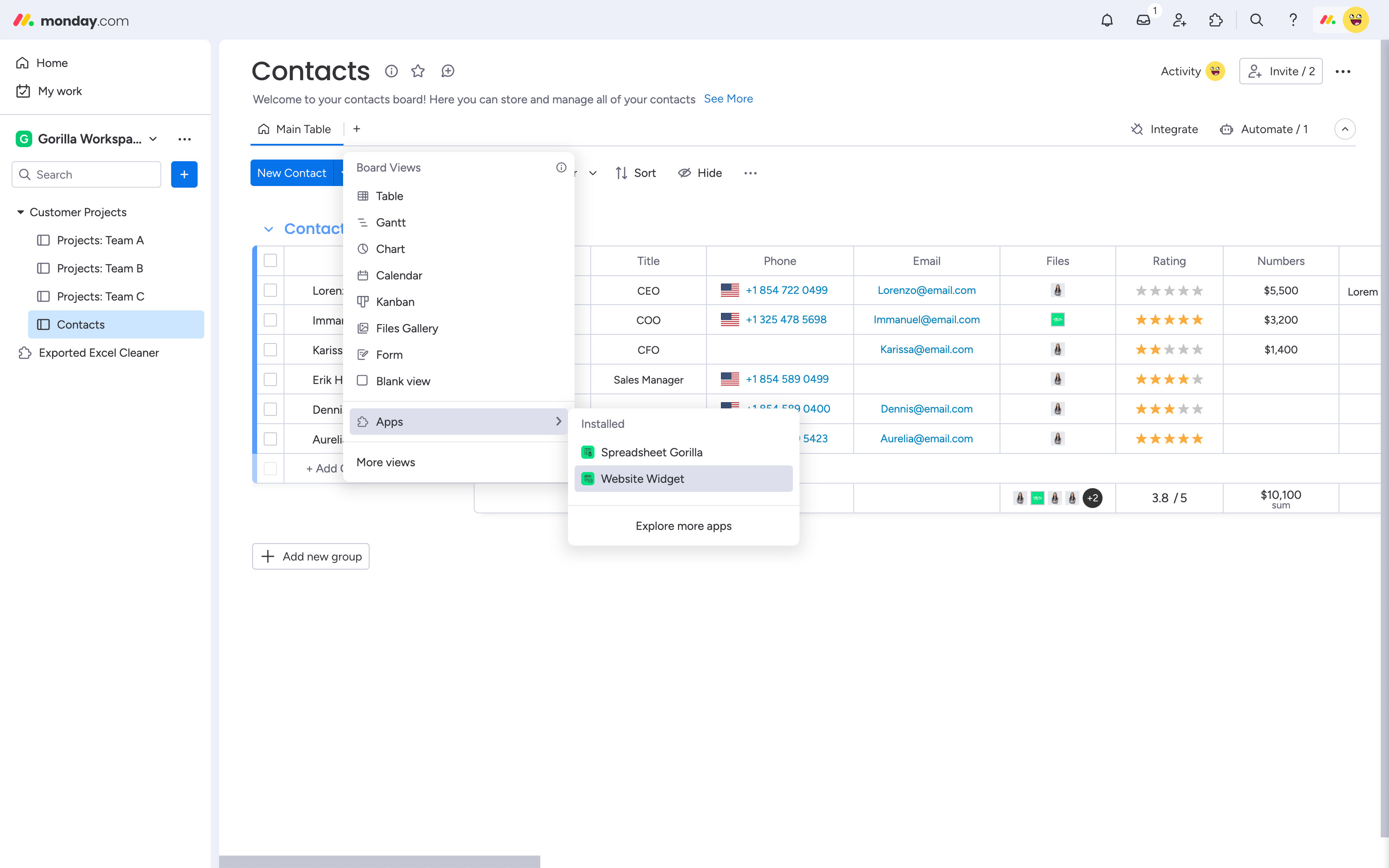
Add the app to a board

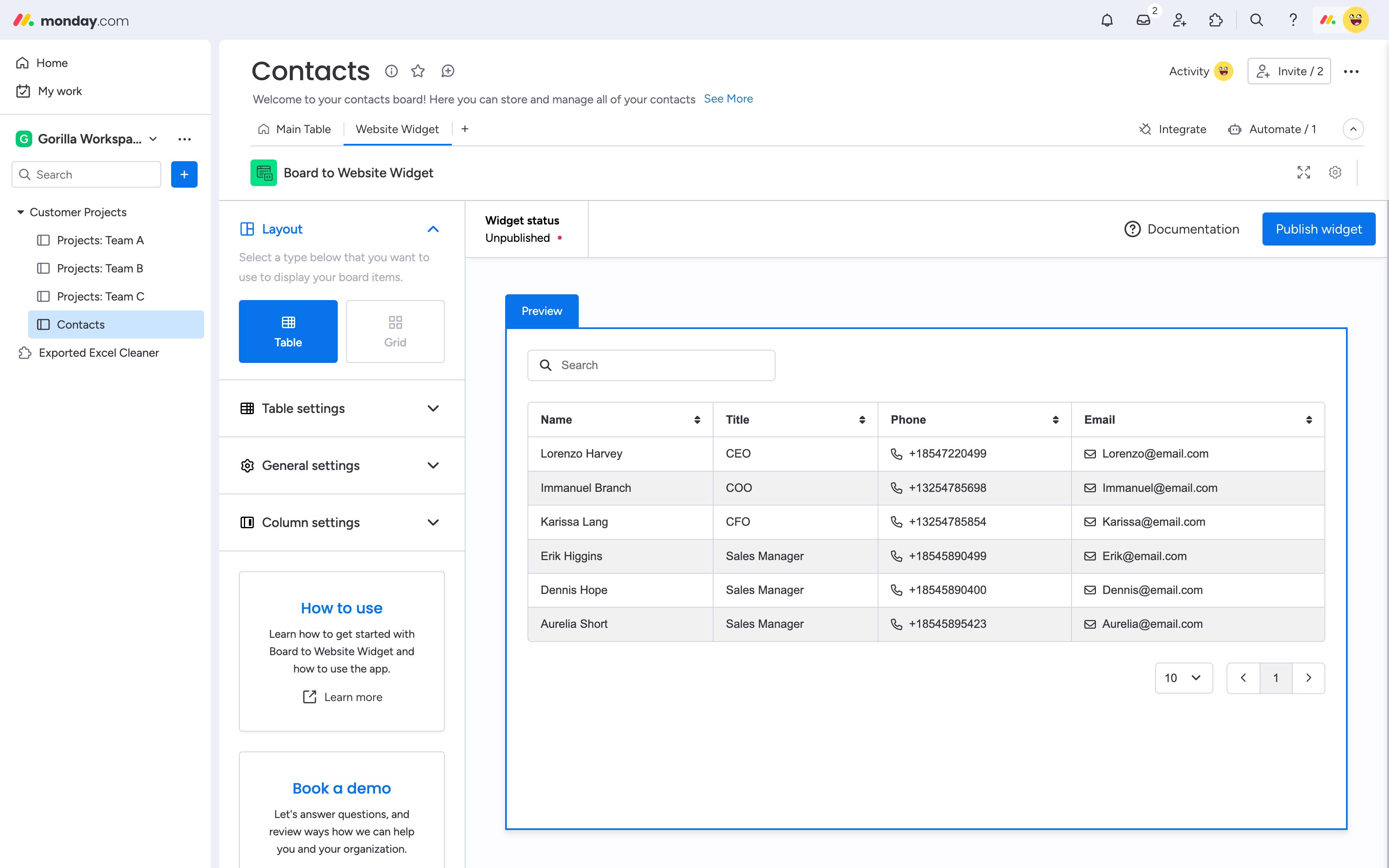
Navigate to a board of your choice and click the + button to add a new view. Now go to Apps and click Board to Website Widget. Now all board data is loaded and you see a preview of your widget.

Step 1

Open the app

You are now ready to customize and publish your first widget. At this point, the order of board columns represent the order in your widget. You may want to reorder them in your main board.

Step 2

Customize the settings

Choose a layout and adapt the given settings to your needs like hiding specific board columns or updating colors. You can make your widget perfectly match your website branding.

Step 3

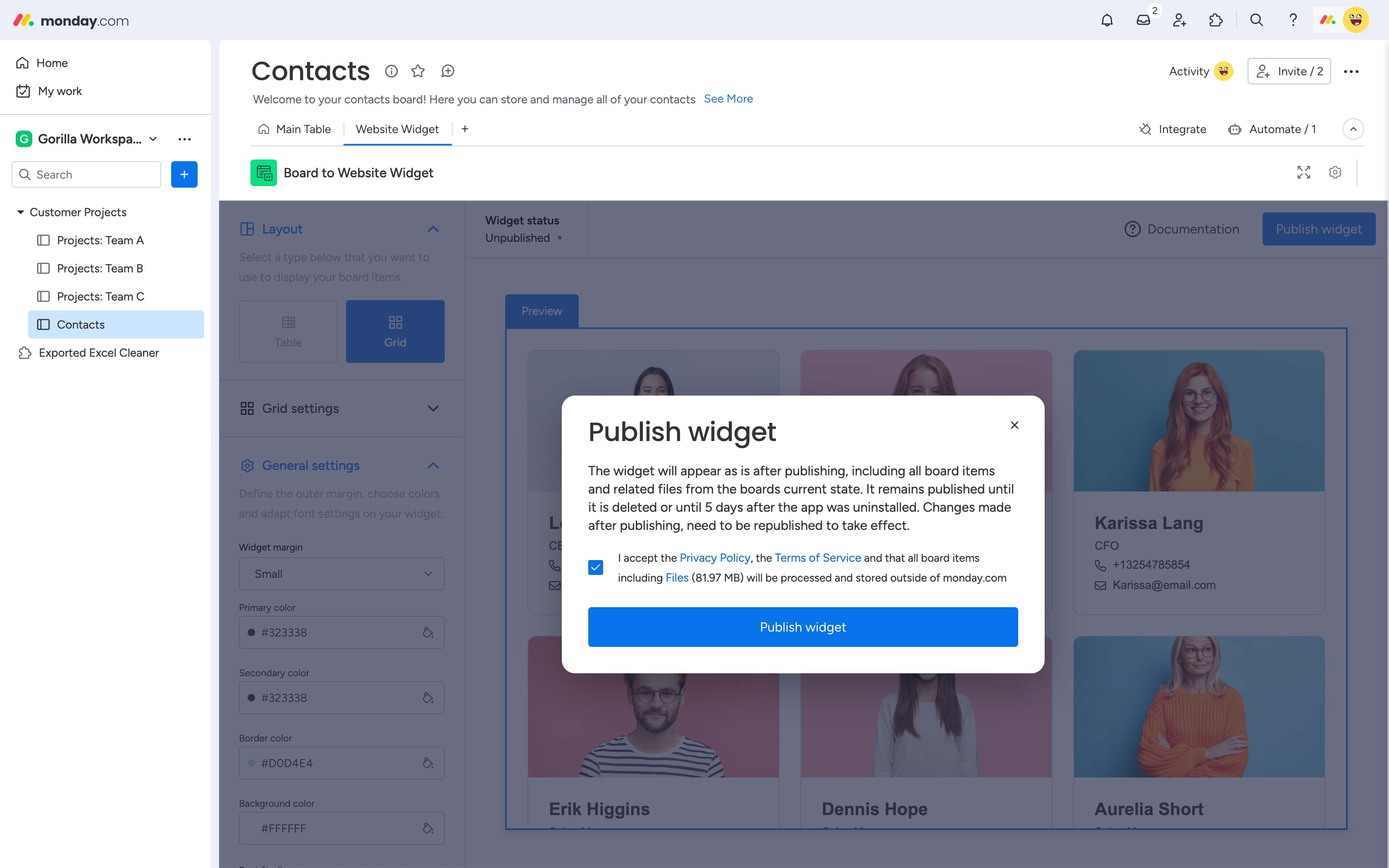
Publish widget

Once you're done setting up your widget and its content, simply click the Publish widget button at the top right and follow the steps along on screen. You can now embed or share your widget.

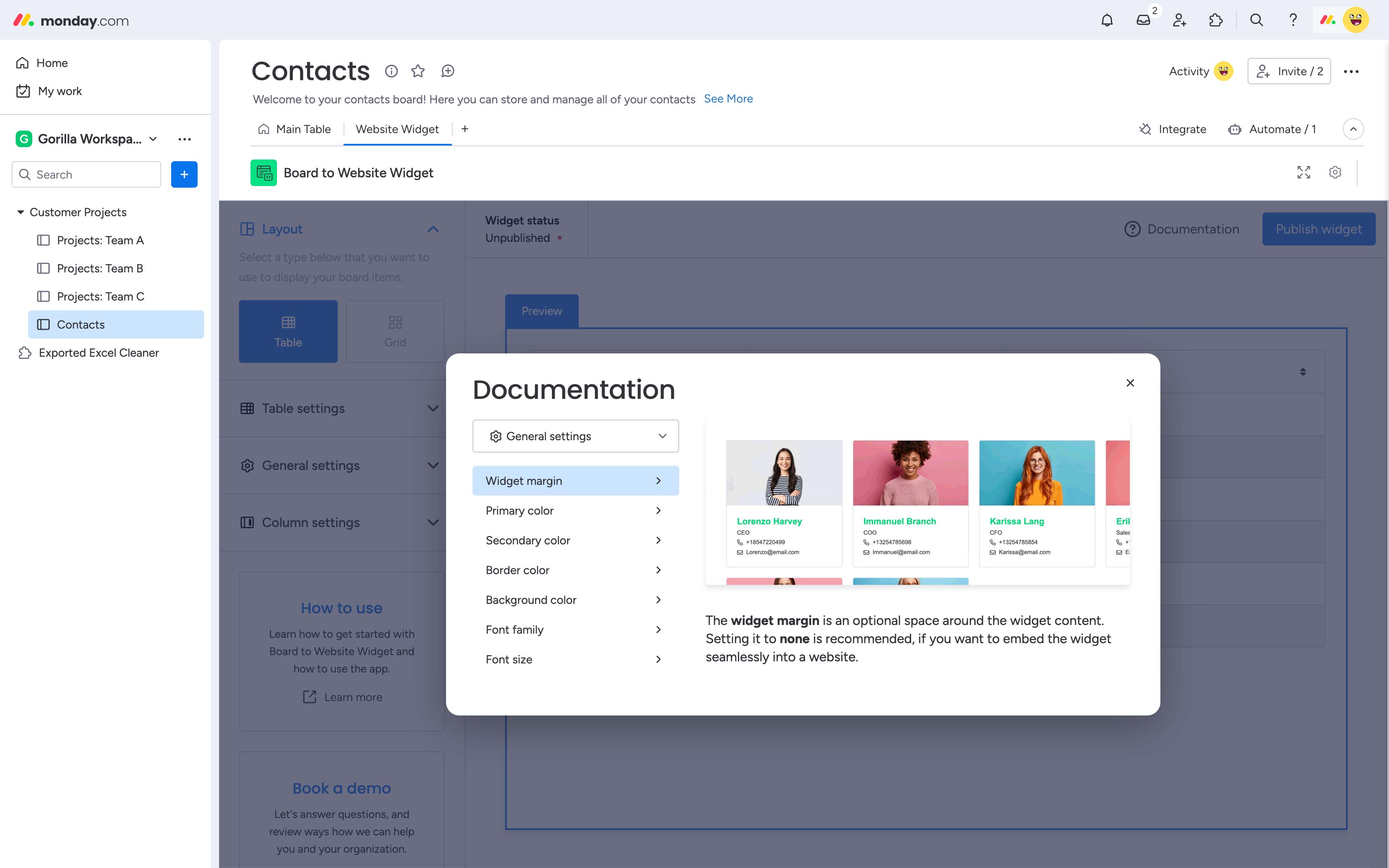
Documentation

If you want to learn about all the settings you can adjust in detail, just open the in-app documentation in the top right, next to the publish button. You will find a visual reference and a short description.