
Quick start: How to use Exported Excel Cleaner for monday.com
In this quick guide you will learn how to add the app to
a workspace, a board and about the general workflow.

In this quick guide you will learn how to add the app to
a workspace, a board and about the general workflow.
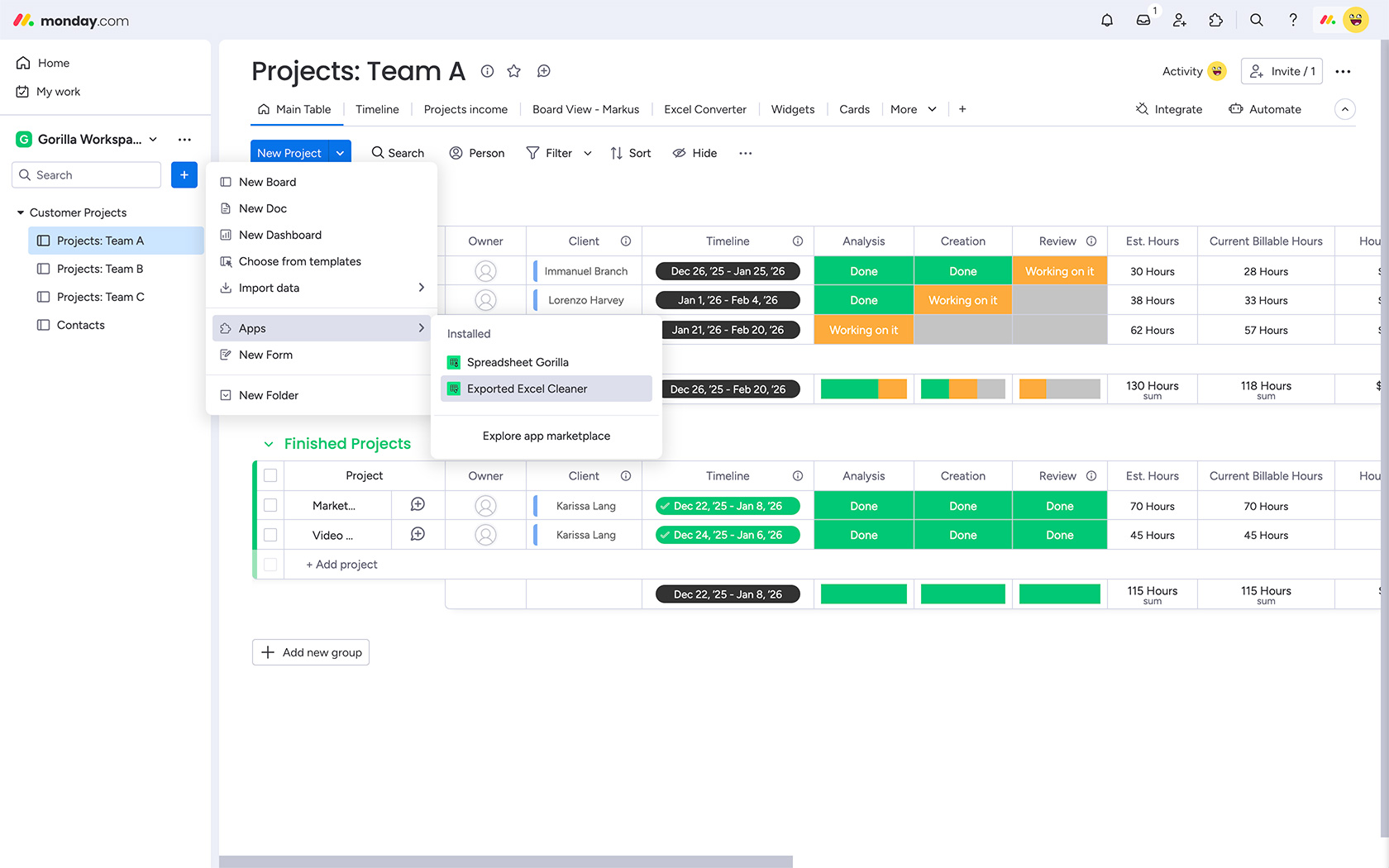
This option is recommended to easily make the app accessible to your entire team from the monday.com sidebar. Navigate to a workspace of your choice and click the blue + button next to the search field in the sidebar. Now go to Apps and click Exported Excel Cleaner.
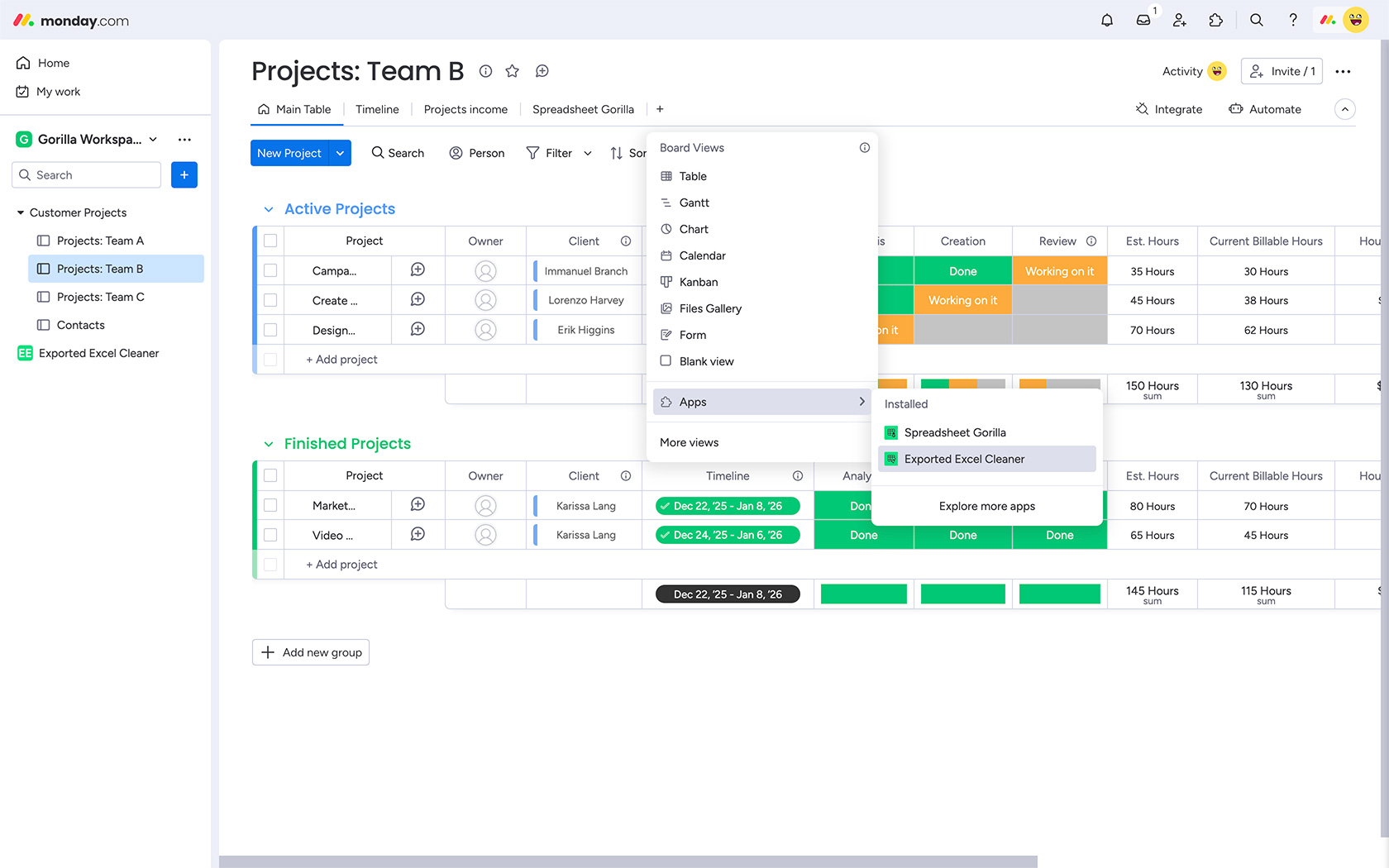
This option is recommended, if you only want to use the app on specific boards. Navigate to a board of your choice and click the + button to add a new view. Now go to Apps and click Exported Excel Cleaner.
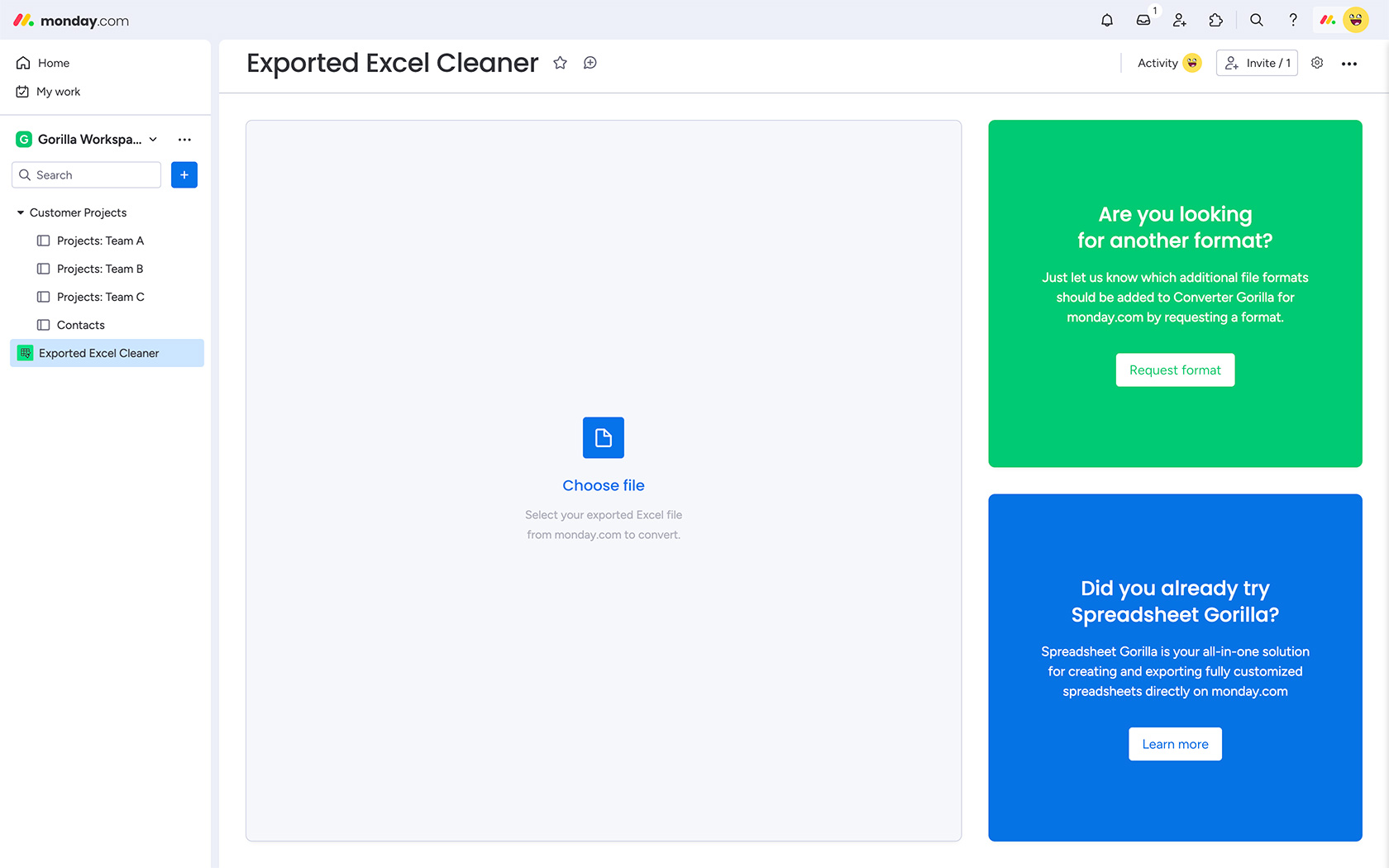
Step 1
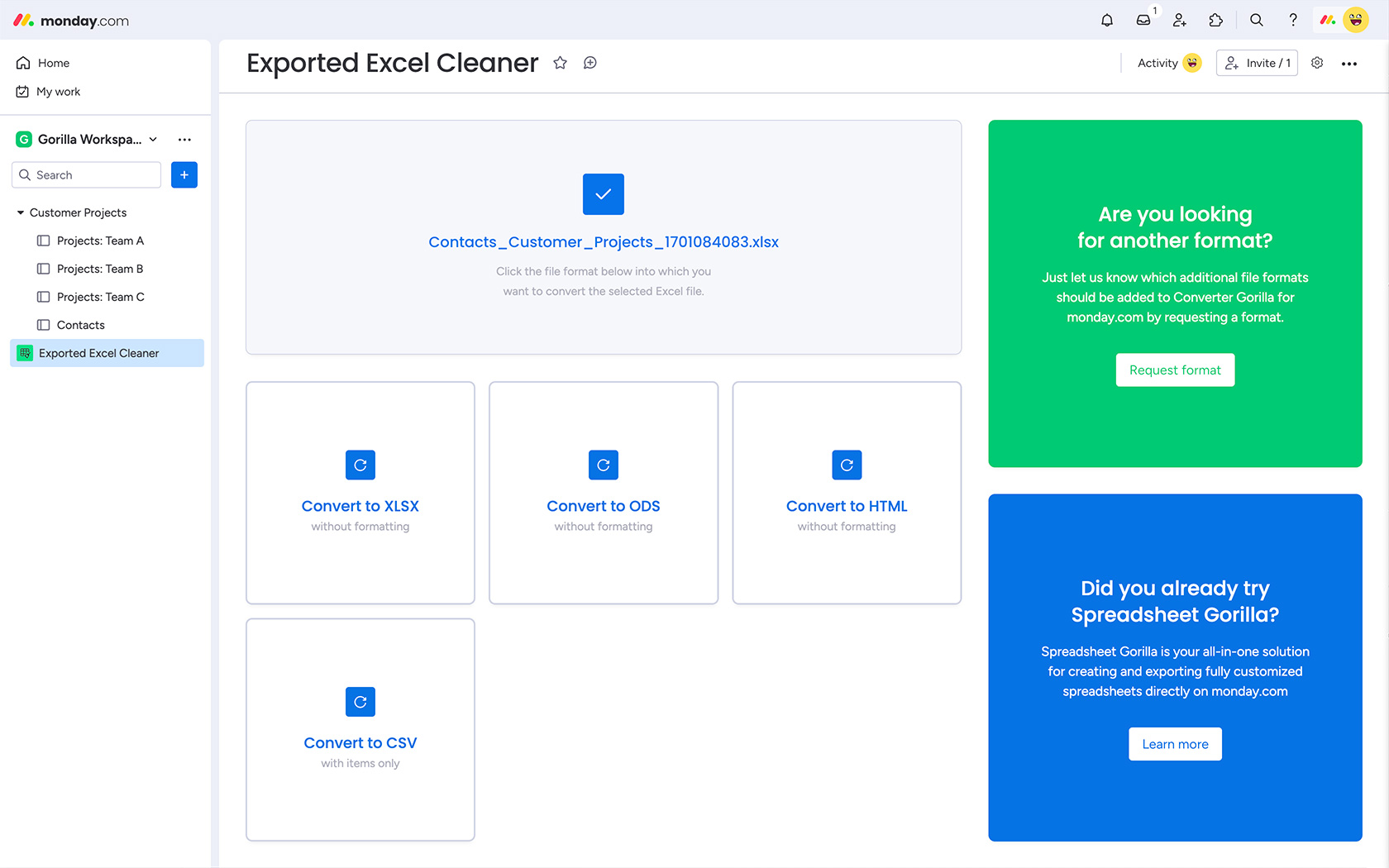
You are now ready to clean and convert your first exported Excel spreadsheet from monday.com by opening the app from the sidebar or within a board. In the screenshot we added the app to the sidebar.
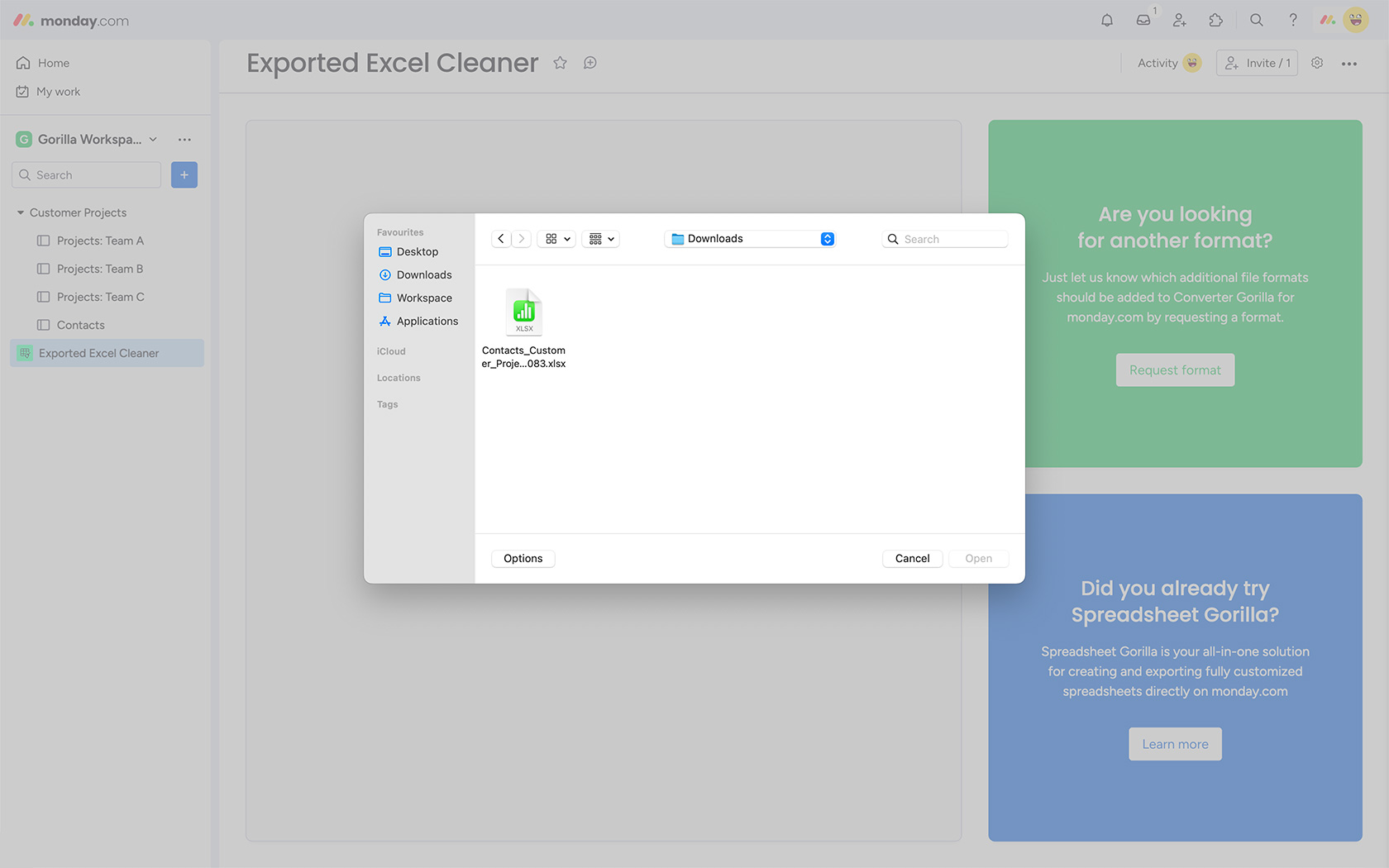
Step 2
Simply click Choose file in the app, and navigate to the folder where the exported and downloaded Excel file from monday.com is located. You can only choose one file at this point, but repeat this step anytime.
Step 3
Multiple options now appear. Just choose from one of the target file formats below. By clicking, your chosen exported Excel file from monday.com will be cleaned and converted. To choose another file, click on the checkmark above.